
How to Watch VR Porn on Oculus Quest
Oculus Quest, now Meta Quest, makes it easy to enjoy immersive VR porn without connecting to a PC. Quest 2, Quest 3, and Quest 3S can all access our content with the right VR video player and playback settings.
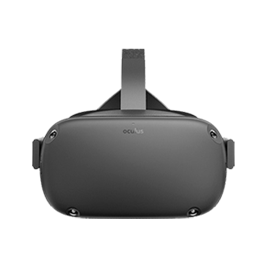
The best optimized for Meta Quest headsets
With Meta Quest 2, Quest 3, and Quest 3S you can access a highly satisfying virtual reality porn experience with one of the best quality-price headset families available today.
Oculus Quest quick setup notes
| Compatible models | Quest 2, Quest 3, and Quest 3S |
| Playback modes | Streaming and local playback |
| Recommended players | Skybox VR and DeoVR |
| PC connection | Meta Quest Link, Air Link, or Virtual Desktop |
How to watch on Oculus Quest
Install a trusted VR video player
Choose a player that supports immersive 180-degree and 360-degree formats so you can switch between streaming and local playback.
Sign in to VirtualRealPorn
Open the site from your preferred workflow and browse Quest-ready scenes from your account.
Use the right quality and projection settings
Select high-quality VR180 files and confirm the correct projection mode inside your player for the sharpest image.
Use Quest Link or Air Link when needed
If you prefer PC playback, connect the headset to your desktop and launch the scene from there.
FAQs
Oculus Quest (now Meta Quest) is a standalone VR headset family that lets you enjoy immersive content without connecting to a PC. Quest 2, Quest 3 and Quest 3S are all compatible with VR porn playback.
Yes. You can stream or download VR scenes optimised for Meta Quest and watch them through compatible VR video players directly on your headset.
Install a trusted VR player, open your account, and choose streaming or local playback mode. For the best quality, select 8K-compatible files and proper projection settings inside the player.
Skybox VR and DeoVR are commonly used options. Both support 180° formats and provide playback controls that work well with Quest headsets.
You can use Quest Link with USB-C or Air Link over Wi-Fi. Once connected, open your preferred VR player on PC and launch the scene in the matching format.
Meta Quest supports common VR formats such as 180° side-by-side and 360° videos, depending on the player. For best visual quality, we recommend optimised 8K VR180 files when available.


