
How to Watch VR Porn on PlayStation VR
If you already have a VirtualRealPorn account and want to use your PSVR to watch porn, it is very simple. You currently have two practical playback options for PSVR and PSVR 2 depending on whether you prefer streaming or offline files.
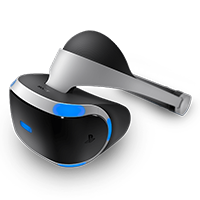
How to watch VR Porn on PSVR
With PSVR and PSVR 2 you can access a highly satisfying virtual reality porn experience thanks to the reliable PlayStation ecosystem. The key is choosing the workflow that best matches your setup.
WatchVR streaming workflow
Open the PSVR area in My Account
Go to the PSVR Streaming App tab inside your account and copy the personal URL shown there.
Install the free WatchVR app
Download WatchVR on your PlayStation setup so you can add your private VirtualRealPorn channel.
Add your channel URL
Inside WatchVR, use the Add button, paste the URL from your account, and confirm the connection.
Stream scenes directly on PSVR
Once the channel is added, you can browse and stream your available VR scenes directly from the headset workflow.
Littlstar RAD offline workflow
Download your scenes on desktop
Use a PC or Mac to download the files you want to watch offline.
Copy files to a USB drive
Move the downloaded videos to a USB device inside a folder named Littlstar.
Connect the USB device to your PlayStation
Plug the USB drive into the console so the player can detect your local files.
Open Littlstar RAD and go to Library
Launch the app, open Library, and start your downloaded VR scenes from local storage.
PSVR playback tips
A strong connection is important if you prefer WatchVR over local files.
Local playback is useful if you want a smoother session or have limited bandwidth.
Matching the right VR180 or 360 projection in your player is essential for a comfortable image.
FAQs
PlayStation VR (PSVR) and PSVR 2 are Sony's virtual reality headsets designed to plug into PS4 and PS5 consoles, offering immersive games and VR video playback.
Yes. With the right apps and players, you can stream or download VR scenes and watch them on PSVR and PSVR 2 in high quality.
Connect your PSVR to the PS5 (with adapter if needed for original PSVR) or use a PC streaming workflow. Choose a compatible VR video player and select the proper 180° or 360° projection.
Littlstar, Skybox and other PSVR-compatible media apps are popular options. For PSVR 2 you can also rely on PS5-friendly players and browser-based viewers.
PSVR can be connected to a PC using drivers like Trinus PSVR, while PSVR 2 offers official PC support via its adapter. You can then launch VR players and enjoy content on the headset.
PSVR and PSVR 2 support common VR formats including 180° side-by-side and 360° videos, with best visual quality delivered by optimised high-resolution VR180 files.


